Podcast & Stream
Make it yours. Add it to OBS. Reuse it every episode.
Live preview
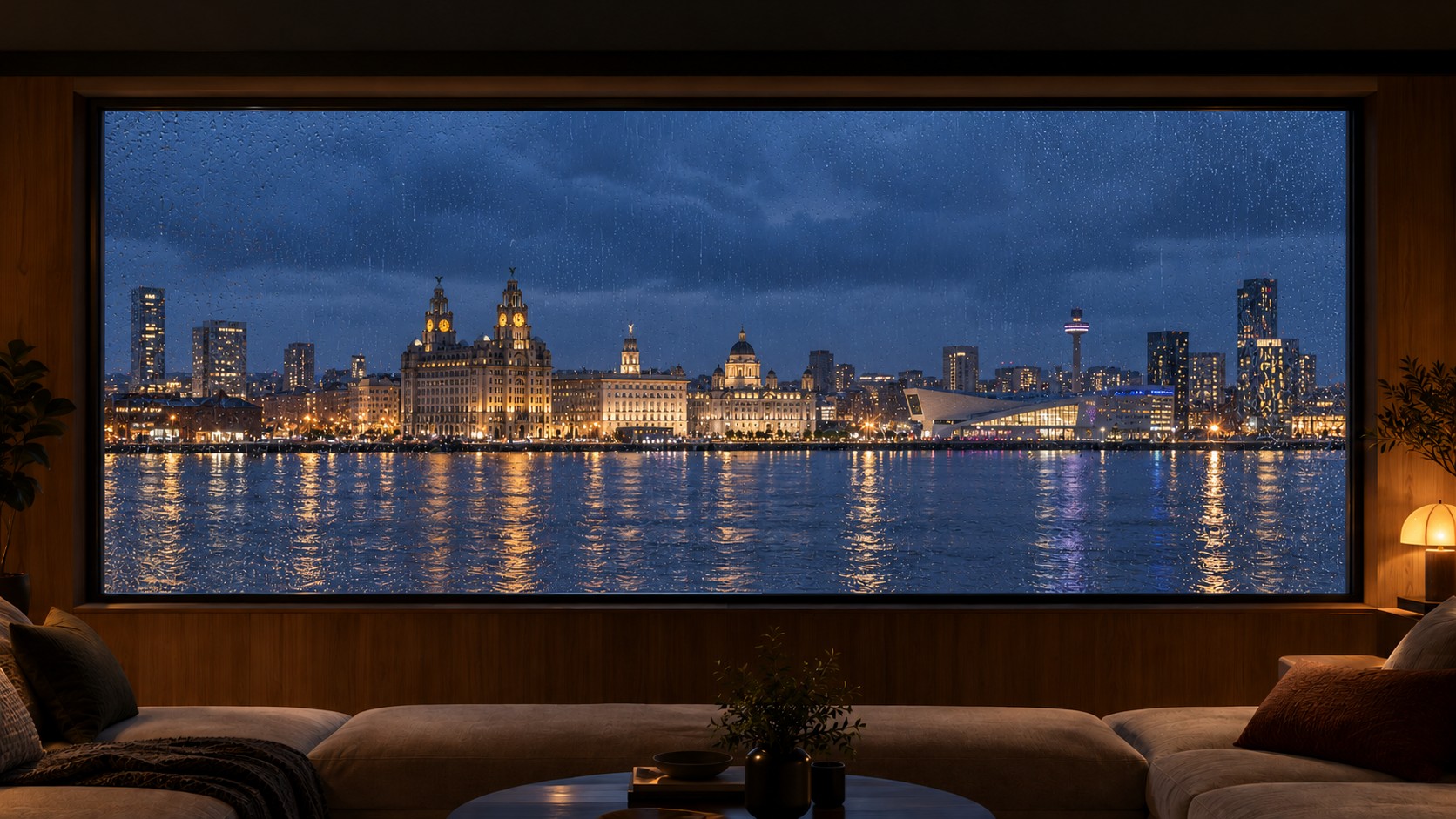
Liverpool from the Wirral
The Evening Conversation
Good conversations. A little space to unwind.
Liverpool from the Wirral
Saved in this browser.
Copy a link when you are ready to use this setting in OBS.
Camera placeholders are guides only. Add your actual camera sources over the frames in OBS.
Use in OBS
Complete show
Get all four matching screens in one OBS scene collection.
Import the JSON through OBS → Scene Collection → Import, then select the new Aether collection. Add your camera and microphone to Main Show. Uses your current design for all four screens.
Current screen only
Export your Live screen. Branding and background are shared across all four screens.
My Shows Save and reopen your show designs
Your current draft saves automatically in this browser. Named shows are separate saved copies: use Update saved show to keep later edits. Download a backup to move a show or protect it before clearing browser data.
Set up or update OBS
Already using Aether in OBS?
- Select Live in Aether, then click Copy OBS link.
- In OBS, open your Main Show scene. In Sources, double-click Aether — Main Show (or the name you gave your Aether Browser source).
- In that source's properties, replace the URL and click OK. If Local file is enabled, turn it off to use a link. To keep using a downloaded HTML file instead, download a fresh file and select it here.
- If you moved or resized the frames in Aether, update each camera using the placement table in step 4 below. Replacing the link updates the backdrop; camera transforms are set separately in OBS.
Your existing Browser source is the one to update. Your camera and microphone remain separate sources. For Starting Soon, Be Right Back and Ending, select the matching screen in Aether and update the corresponding scene's Browser source.
1. Choose how to add your backdrop
Browser link: copy the link and paste it into an OBS Browser source. Uploaded logos are included in the downloaded file only.
View playback link
HTML file: download your backdrop, including your uploaded logo. In an OBS Browser source, enable Local file and select it.
2. Set the source size
In OBS Settings → Video, use a Base (Canvas) Resolution of 1920 × 1080 for these placement values. Your recording output resolution can differ.
In the Aether Browser source properties, set Width 1920 and Height 1080. Then right-click that source → Transform → Fit to screen, and lock it in the Sources list.
3. Create your matching screen set
Create four scenes in OBS: Starting Soon, Live, Be Right Back and Ending. Select each matching screen in Aether, then copy its link or download its file into a separate Browser source in the corresponding OBS scene. All four use the same branding and background. Export each again after changing the shared design.
4. Add your cameras to Live
In the Live / Main Show scene, add each camera source above Aether in the Sources list. For an existing camera, select Host Camera (or your camera's name), click its padlock to unlock it, then press Ctrl+E on Windows to open Edit Transform.
- At the top, enter Position X and Position Y from the table below. Set Rotation to 0° and choose the top-left square in the top Alignment grid.
- In the separate Bounds section, change the dropdown from Automatic to Fit (called Scale to inner bounds in some versions).
- Enter the table's Bounds width and Bounds height into the Width and Height fields inside that Bounds section. Use the centre square in the Bounds Alignment grid.
- Click Close, check the fit, then lock the camera again. Repeat for the guest camera if you use Two people.
Use the Bounds fields below the dropdown. The upper Size → Width / Height fields are different; use the Bounds fields for this setup. The table shows the camera area inside each frame, so its dimensions are slightly smaller than the frame width in Aether's editor.
These values preserve the camera image proportions. A 16:9 camera feed fills the space; other proportions leave space rather than stretch the image. Existing crop settings affect the result.
If your camera looks wrong
- Check that the camera is above Aether in Sources.
- Check the canvas is 1920 × 1080 and Aether is fitted to it.
- Check Position, Top Left alignment and Bounding Box Size, rather than changing the source Size.
- If you intend to start fresh, reset the camera transform before entering these values; this removes previous positioning and crop settings.
5. Check the finished scene
Record about 15 seconds while speaking, then play it back. Check camera alignment, readable branding, clear voice audio and smooth playback without a black screen. This is a local recording; you do not need to go live. Aether's backdrop is silent; your microphone is a separate OBS source.
Optional: remove your room background
Keep yourself on camera while letting the Aether setting show through behind you. This uses Live Background Removal Lite, an independent third-party OBS filter. Install and enable it in OBS; Aether does not install it or control its settings.
Tested setup: Windows 11, OBS 32.2.2 (64-bit), HP HD Camera, default filter settings and improved front/side lighting. Recording and head-turn checks passed on that setup. Results on other cameras and computers may differ.
Install the optional filter (Windows)
The plugin currently lists OBS 31.1.1 or later as a requirement and does not support portable OBS installations. Check its current instructions before installing.
- Open the official plugin download page ↗ and download the Windows ZIP.
- Close OBS completely. Extract the ZIP and copy the live-backgroundremoval-lite plugin folder into
C:\ProgramData\obs-studio\plugins. The plugin folder should contain bin and data; avoid an extra nested download folder. - Reopen OBS. Right-click Host Camera (or your camera source) → Filters.
- Under the lower Effect Filters list, click + and choose Live Background Removal Lite. Start with its default settings.
Keep your camera source above Aether in Sources. Apply the filter to the camera, rather than the Aether Browser source. Repeat for a guest camera only if needed. Your room should disappear within the camera area, revealing Aether underneath.
Light your face before adjusting the filter
Face a window or use even front lighting. A side light can help fill shadows. Avoid a bright window behind you. In our test, better lighting substantially improved the cutout when turning sideways. Fine hair, face profiles and moving hands can still produce rough or flickering edges.
If the camera picture is black
- In camera Filters, click the eye beside Live Background Removal Lite to disable it temporarily. Check whether the unfiltered picture returns.
- If it stays black, open the camera source's Properties. Select your physical camera under Device (HP HD Camera in our test), then try Deactivate, wait five seconds and Activate. Check the camera privacy shutter.
- If there is still no picture, close OBS and test the camera in the Windows Camera app. If that works, close the Camera app before reopening OBS. If it also fails, resolve the camera issue before continuing the filter test.
Once the ordinary camera picture works, re-enable the filter. To return to a normal camera view at any time, turn its eye off in Effect Filters.
Check a recording before using it live
Record 30 seconds over your Aether setting. Speak, turn your head both ways and move your hands naturally. Play it back to check the face and hair edges, flickering, smooth movement and voice synchronisation. If quality is unreliable, improve lighting or keep the normal camera view.
Plugin requirements, installation and support ↗ · Setup guidance checked 22 October 2026.
Create a fresh export after changing settings.
Copy a new link or download a new file after changing settings. Keep the downloaded file on your computer; it still needs access to Aether online.