
Aether for podcasts and streams
A setting for
your video podcast.
Design a reusable setting with your show branding, camera layout and optional background motion. Download four matching screens for OBS, then add your cameras and microphone.
One host or two people · Your show branding · Silent visuals for OBS
Try your show setting
One show. Four matching screens.
Preview each part of your broadcast, from the opening screen to the sign-off. Personalise the set in Podcast & Stream, then download all four OBS scenes.
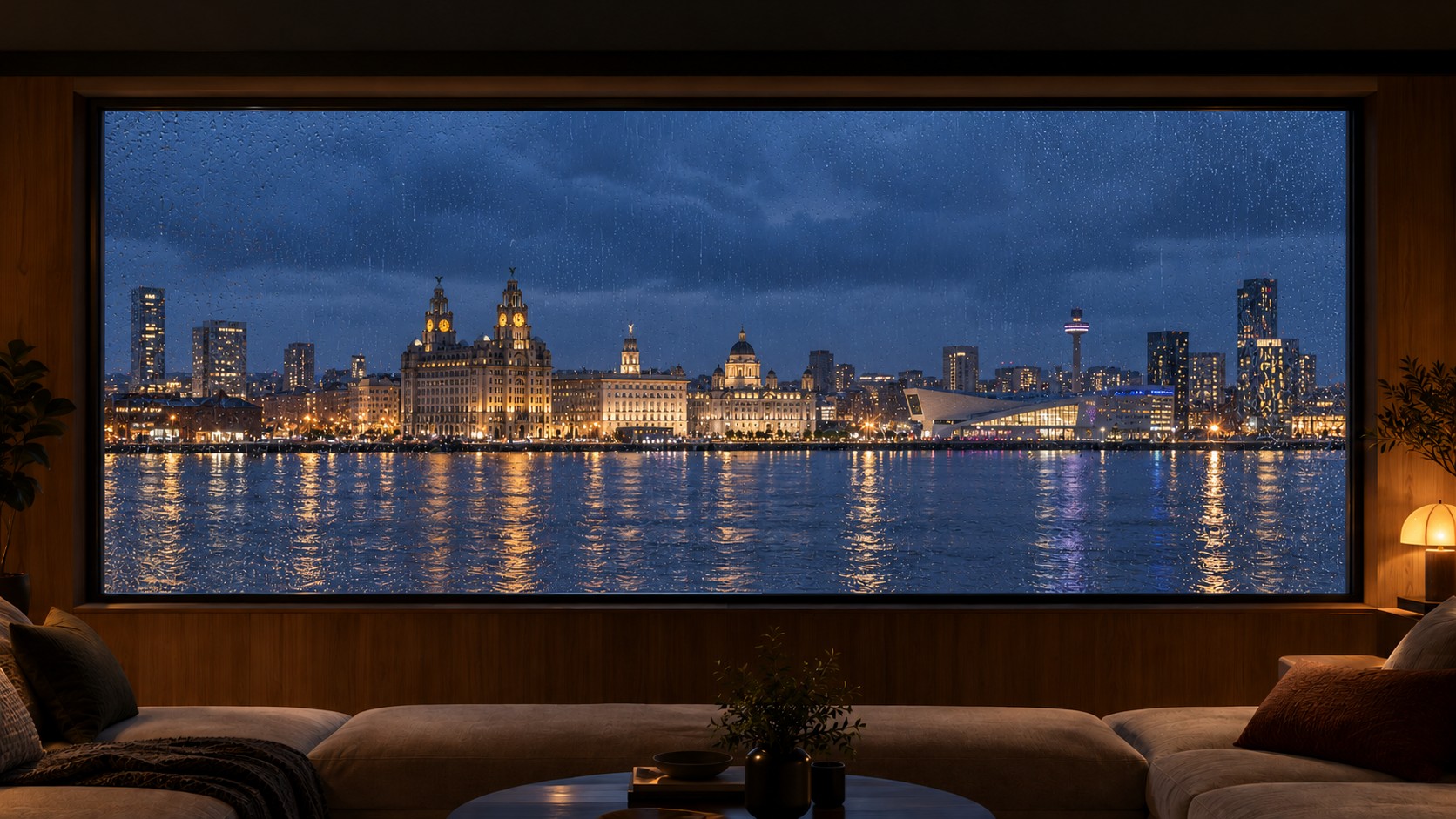
The Evening Conversation
Good conversations. A little space to unwind.
Liverpool from the Wirral
Live: your show with camera guides. Add your own cameras in OBS.
Live Aether preview with camera guides. Your camera appears here when you add it in OBS; Aether does not capture or request access to your camera on this page. This example uses the Liverpool setting; motion is silent and respects your device’s reduced-motion preference.
From Studio to recording
Personalise. Export. Record.
Design your show setting in Aether. Add cameras and a microphone in OBS to record or stream.
Personalise your show
Open Podcast Studio. Choose a layout, enter your show details, set your colour and motion, and optionally add a logo.
Keep your setting
Changes are saved automatically in this browser on this device. Use My Shows to save a named show and download its JSON backup for restoring or importing into Aether. OBS exports are separate files for your recording setup.
Export your setting
Choose “Download all four OBS scenes” for a matching set: Starting Soon, Main Show, Be Right Back and Ending. Import the JSON through OBS → Scene Collection → Import. You can also use “Copy OBS link” or “Download HTML backdrop” for an individual screen.
Add your camera
Add the backdrop as a Browser source in OBS at 1920 × 1080. Place your camera sources above it and fit them inside the frames. Record or stream using your usual microphone setup.
Before you record
A few useful details.
How does the backdrop appear behind me?
In OBS, place your camera source above the Aether Browser source. A camera inset keeps your room visible inside that inset. To appear directly within the environment, use a green screen with chroma key or a separate camera background removal tool. Aether creates the environment; your recording setup handles the camera.
Will the backdrop play sound over my microphone?
No. Podcast Studio exports silent visuals. Manage your microphone and any other audio in OBS.
What is the difference between a link and an HTML file?
The link includes your show text, layout, colour and motion: leave Local File unticked in OBS and paste it. To include an uploaded logo, download the HTML file, tick Local File and select it. Both need an internet connection to load the Aether player.
Do edits automatically update my OBS backdrop?
The export contains the settings you chose at that moment. After making changes, export again and copy a new link or download a new file. Replace the previous export in your OBS Browser source.
What does the four-scene collection include?
A matching Starting Soon screen, Main Show, Be Right Back screen and Ending screen, using your current design. Import it through OBS → Scene Collection → Import, then select the new Aether collection. Add your camera and microphone to Main Show. Export again after changing your design. An internet connection is needed to load Aether.
Is this a downloadable video?
It is a browser-rendered backdrop with animated effects. OBS can record it as part of your finished video or use it in a live stream.
Help shape Aether
Bring your show.
Help shape what comes next.
Join for podcast testing invitations and launch updates from Keystone Mere Ltd. Tell us what you record with so we can understand your setup.
A short signup form opens on Tally. Email is required; your show link and recording software are optional. You can unsubscribe from emails at any time.
Make your first backdrop